
1. App overview
The Netzverb German Dictionary App for Learners supports learning and practicing German vocabulary, grammar, translations, example sentences and usage. It combines several learning areas in one interface:
- Browse: search and explore German words and word forms.
- Collections: organize words into personal word lists.
- Examples: search German example sentences and their translations.
- Games: practice vocabulary, articles, verb forms and sentences.
- Translator: translate words or sentences between German and another language.
- Chat: use an AI assistant for German learning, explanations and practice.
- Settings: configure languages, layout, collections, speech, web resources and advanced options.
Many controls are reused throughout the app. Search fields, language selectors, history menus, lookup menus, filters and word actions work in a similar way in several sections. Once users understand these shared controls, the rest of the Netzverb German Dictionary App becomes easier to use.
2. Main navigation
The main areas of the app are available from the bottom navigation bar. Depending on the configuration, the bottom bar can contain:
- Chat
- Translator
- Games
- Examples
- Collections
- Browse
The currently active section is highlighted. In the settings, selected navigation buttons can be enabled or disabled, so the bottom bar can be adapted to the user’s preferred workflow.
3. Shared controls and concepts
3.1 Search bar
Several sections use a search or input bar at the bottom of the screen. The exact behavior depends on the current section, but the general structure is the same.
This bar contains:
- A language selector on the left.
- A history button for recent searches.
- A text input field.
- A clear button to remove the current input.
- A lookup button to use the current input in other app areas.
- A microphone button for speech input, when speech recognition is enabled.
- A button to submit the input
3.2 Language selector
The language selector lets the user define which languages are used for search, translation or chat.
In word-based sections, users can define:
- The 1st translation language.
- The 2nd translation language, when needed.
- The primary search language, such as German, the first translation language or the second translation language.
- A swap action for switching the first and second translation language, when a second language is configured.
By default, the first translation language is usually based on the phone language. If that language is not available, English may be used as fallback.
In the Translator section, the language selector defines the source and target language. In the Chat section, it defines the assistant language and the input language.
3.3 History
Several areas have a history menu. It shows previous searches, translations or chats.
Users can:
- Select an earlier entry to restore it.
- Delete individual entries.
- Clear the complete history list.
- Access longer history where supported by the Pro version.
When an old search is selected from history, the previous search text and state are restored.
3.4 Voice input
When speech recognition is enabled, the microphone button can be used to dictate text.
The behavior is:
- Tap the microphone once to start speech input.
- Speak the word, sentence or message. The recognition stops automatically.
- Tap again to stop the current speech input immediately.
The recognized text is inserted into the current input field. Speech recognition can be enabled or disabled in the Speech settings.
3.5 Lookup menus
Lookup menus are used throughout the app. They allow the current word, sentence or input text to be reused in another area.
A lookup menu may offer actions such as:
- Translate: open the selected text in the Translator.
- Examples: search for example sentences.
- Browse: open the selected text in the Browse section.
- Chat about: send the selected text to the AI Chat with a predefined prompt.
- Lookup web: open the selected text in an external web resource.
- Copy: copy the selected text.
- Share: share the selected text with another app.
- Submit: execute the current search or input action.
Not every action is available in every place. The menu adapts to the current context.
3.6 Chat prompts from lookup menus
When the user chooses Chat about, the app offers predefined prompt categories.
Available prompt types include:
- Information
- Grammar
- Translation
- Examples
- Context
- Meaning
- Origin
- Practice
These prompts help the user ask the AI assistant about the selected word or sentence without having to write the full question manually.
The Practice option starts a learning-oriented conversation. The assistant can suggest exercises and help the user practice the selected item.
3.7 Web lookup
The Lookup web menu lets users search the selected word, sentence or text in external web resources.
Available resources include:
- Netzverb Inflection resources
- Netzverb Dictionary resources
- Netzverb SatzApp
- Wiktionary
- Wikipedia
- Yandex
- Custom web resources
Users can configure custom web resources for external lookups. In the Pro version, up to nine custom web resources can be created. Each custom resource has a name and a URL pattern with a placeholder for the selected word, sentence or text. These custom resources appear in the Lookup web menu together with the predefined resources and open in the internal browser.
Web lookup opens the selected resource in the internal browser.
3.8 Filters
Several sections allow filtering. Filters are in Browse, Collections, Examples and Games.
When filters are active, they appear as filter chips below the toolbar. A filter chip shows which filter is currently selected.
Users can:
- Tap a filter chip to change the filter.
- Tap the X on a chip to remove that filter.
- Use multiple values where the filter supports multiple selection.
- Recognize active filters by the presence of filter chips.
This is useful when a word or sentence does not appear in the list. The result may be hidden because a filter is active.
Common filter categories include:
- Collections
- Word type
- Level
- Inflection
- Composition
- Auxiliary
- Gender
- Usage
- Success
- Themes
The available filter categories depend on the current section.
3.9 Recent mode
Some word lists have a Recents mode. It can be activated from the clock icon in the toolbar. Recents mode filters the list to recently opened words. Users can choose the sorting direction:
- Newest first
- Oldest first
This helps users quickly return to words they recently viewed.
3.10 Internet access
The three dots menu in toolbar includes an Internet access option. This can be used to switch between online and offline-related behavior, depending on the current context.
AI-powered features such as Translator and Chat require an internet connection. Some local word data may still be available offline, depending on the app version and configuration.
3.11 Help
Contextual help is available from help icons and menu entries. Help opens information related to the current screen or function.
The main menu also contains general help resources such as Help, FAQ and Release Notes.
4. Word entries and word lists
Word lists are used in Browse and Collections, and parts of the same word display are reused in Games and detail views.
A word entry can show several kinds of information:
- German word
- Article or grammatical marker
- Basic forms
- Word type
- Level
- Inflection information
- Translation in the first translation language
- Translation in the second translation language
- Pronunciation in IPA
- Denotations and meaning notes
- Usage notes
- Example sentence
- Example translation
- Notes and tags
- Collection markers
- Success status from games
The visible information can be customized in the Word Layout settings.
4.1 Word colors
Words can use different colors to make grammatical information easier to recognize. For example, colors can indicate word type or noun gender. This behavior can be enabled or disabled in Display & Layout settings.
4.2 Search highlighting
When search highlighting is enabled, the matching part of a word or form is highlighted in the list. This helps users see why an entry appears in the search results.
4.3 Sound icons
Small sound icons appear next to words, forms or example sentences where audio is available.
Tapping a sound icon plays the pronunciation or reads the corresponding form aloud.
Some audio features may depend on the app version or Pro features.
4.4 Collection markers
Words can belong to one or more collections. Collection membership is shown with colored dots next to the word.
A word can belong to multiple collections. When several collections are assigned, multiple colored dots are shown.
4.5 Success markers
Words can have a success status based on games and manual changes.
The app can show whether a word was:
- Answered correctly
- Answered incorrectly
- Not tried yet
Correct answers can be shown with a green indicator and a count. Incorrect answers can be shown with a red indicator and a count.
These success values can also be used as filters, so users can practice words they answered incorrectly or have not practiced yet.
4.6 Word item menu
Each word entry have a three-dot options menu.
This menu includes:
- Add or remove the word from Collections.
- Edit Note and Tags.
- Set Success status.
- Open Word Layout settings.
Collections that are marked for quick access appear directly in this menu. Other collections are available in the Collections submenu. This prevents the menu from becoming too large when many collections exist.
4.7 Note and Tags
The Note and Tags editor lets users add personal information to a word.
Users can add:
- Free notes
- Tags
- Custom translations
Tags are entered with a hash # prefix. Tags can later be searched directly from the search bar by using the hash symbol.
Custom translations can be entered using a colon :. A language code can also be used to assign the custom translation to a specific language. These custom translations can then be found through normal search in that language.
4.8 Success menu
The Success menu lets users manually set the learning status of a word.
Available states include:
- Correct
- Untried
- Faulty
This can be used to reset a word, mark it as learned or mark it for further practice.
5. Word Layout
The Word Layout screen in Netzverb German Dictionary App for Learners controls which information is shown in word lists and word summaries.
At the top of the screen there is a preview of a word entry. When options are changed, the preview shows how the word will appear.
Users can show or hide many parts of a word entry, including:
- Basic forms
- First translation
- First translation icon
- Second translation
- Second translation icon
- Example sentence
- Example translation
- Pronunciation IPA
- Denotations
- Usages
- Note and Tags
- Level
- Properties
- Highlighted search text
The layout can be reset to the default settings with Reset. Changes can be saved with Apply.
Long information is usually shown in a shortened single-line form. The layout settings can also control whether longer information is truncated or expanded across several lines.
6. Word detail view
When the user opens a word from a list, the Netzverb German Dictionary App for Learners shows the word detail view.
The detail view contains:
- A word summary at the top.
- Detailed information below.
- Several swipeable pages or sections.
- Toolbar actions for collections, help, lookup and options.
The detail view gives more information than the compact list entry.
6.1 Detail page: grammar
The first detail page shows grammatical information.
Verbs
- Present forms
- Past tense
- Participle
- Imperative
- Subjunctive forms
- Infinitive forms
- Finite verb forms
Nouns
- Singular
- Plural
- Nominative
- Genitive
- Dative
- Accusative
Adjectives
- Masculine
- Feminine
- Neutral
- Plural
- Weak declension
- Strong declension
- Mixed declension
- Predicative
Articles and pronouns
- Masculine
- Feminine
- Neutral
- Plural
- Nominative
- Genitive
- Dative
- Accusative
The available grammar information depends on the word type.
6.2 Detail page: meanings and translations
Another detail page shows meaning-related information.
It can include:
- Denotations
- Translations by meaning
- First translation language
- Second translation language
- Thesaurus information
- Synonyms
- Antonyms
- Prepositions
- Usage information
- Mandatory case
- Translations in other supported languages
The app supports translations in many languages. The first and second translation languages are emphasized according to the user’s language settings.
6.3 Detail page: examples
The examples page shows example sentences for the word.
Example sentences are grouped by level, such as A1 through C2+. Each entry can show:
- The German example sentence
- Translation in the first translation language
- Translation in the second translation language
In the Pro version, additional sentence audio features may be available.
6.4 Detail toolbar
The word detail toolbar can include:
- Collections menu
- Help
- Lookup menu
- Options menu
The lookup menu in the detail view works like the lookup menus in other areas. It can open the word in Translator, Examples, Chat or web lookup.
6.5 Detail options menu
The detail options menu can include:
- Refresh
- Next word
- Previous word
- Favorites
- Note and Tags
- Success
- Internet access
- Word Layout
Next word and Previous word move through the current list that opened the detail view.
6.6 Homonyms
Some German words have the same written form but different meanings or grammatical roles. These are shown as homonyms.
When homonyms are available:
- A small information marker indicates that another entry with the same form exists.
- The detail view shows tabs for the different entries.
- The user can switch between the homonym tabs.
- Each tab shows the corresponding word type and meaning.
This is useful for words that look identical but have different grammatical functions or meanings.
6.7 Split screen in landscape and tablet layouts
On wider screens, such as landscape mode or tablets, the app can use a split screen layout.
In split screen mode:
- The list remains visible on the left.
- The selected word detail view appears on the right.
- Users can scroll the list and quickly inspect details without leaving the list.
- The first result of a search can be opened automatically on the right.
- A fullscreen button can expand the detail area.
Split screen can be enabled or disabled in Display & Layout settings.
7. Browse
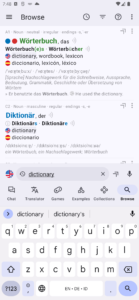
Browse is the main dictionary and word search area in Netzverb German Dictionary App for Learners.
Users can search for:
- German words
- German word forms
- Multiple words
- Text in the first translation language
- Text in the second translation language
Search results are shown as a word list. Each entry can show the German word, forms, translations and additional information according to the active Word Layout configuration.
7.1 Browse search
The search bar at the bottom is used to enter the search text.
Users can:
- Type a search term.
- Dictate the search term with the microphone.
- Clear the search input.
- Restore a previous search from history.
- Use the lookup menu to send the current input to another app area.
The language selector defines whether the search is primarily performed in German or in one of the configured translation languages.
7.2 Browse toolbar
The Browse toolbar contains:
- Main menu
- Recents button
- Filter button
- Context menu
The Recents button filters the list to recently opened words and allows sorting by date.
The Filter button opens the filter menu. Active filters appear as filter chips below the toolbar.
The context menu can include actions such as refresh, export, import, internet access and help.
7.3 Browse filters
Browse supports detailed filtering of the word list.
The filters can include:
- Collection
- Word type
- Level
- Inflection
- Composition
- Auxiliary
- Gender
- Usage
- Success
- Themes
Filters can be combined. When results are missing, users should check the filter chips because an active filter may hide matching entries.
7.4 Word actions in Browse
Each word in the Browse list can be opened or acted on directly.
Users can:
- Tap the word to open its detail view.
- Use the lookup icon to open the word in another section.
- Use the three-dot menu to assign collections, edit notes, set success or adjust layout.
- Tap sound icons to hear pronunciation where available.
8. Collections
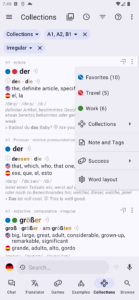
Collections are personal word lists in Netzverb German Dictionary App for Learners. They help users group words for learning, review or specific topics.
The Collections screen is built almost the same way as Browse. It uses the same word list layout, search behavior, lookup actions, filters and word menus.
The main difference is that Collections has a fixed collection filter at the top. Users can choose:
- All words that belong to any collection.
- A specific collection.
8.1 Collections and word assignment
Words can be added to collections from:
- The word item menu in a word list.
- The collection menu in the detail view.
- Other collection-related menus.
Collections can also be marked for quick access. Quick access collections appear directly in the word menu. Other collections are available through a submenu.
8.2 Importing vocabulary into collections
The Collections section can include a visual import area for predefined vocabulary or word lists.
Users can import prepared vocabulary into a collection and then practice or filter these words in other parts of the app.
8.3 Using collections with games
Collections can be used as filters in Games. This allows users to practice only the words from a selected personal list.
9. Examples
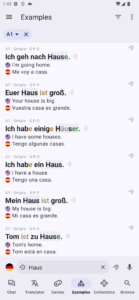
The Examples section is used to search and browse German example sentences in Netzverb German Dictionary App for Learners.
It has a similar structure to Browse:
- Search bar at the bottom
- Language selector
- Search history
- Clear button
- Lookup button
- Microphone input
- Filters in the toolbar
- List of matching entries
9.1 Example entries
Each example entry can show:
- German sentence
- Level
- Sentence pattern or grammar information
- Translation in the first translation language
- Translation in the second translation language
- Sound icon where available
- Lookup action
The displayed translations depend on the selected translation languages.
9.2 Searching examples
Users can search example sentences by entering German text or text in a configured translation language, depending on the selected search language.
The search works similarly to Browse, but the result list contains sentences instead of word entries.
9.3 Example lookup actions
Each sentence can be used in other app areas through the lookup menu.
Users can:
- Translate the sentence.
- Open related words in Browse.
- Start a chat about the sentence.
- Use web lookup.
- Copy or share where available.
9.4 Word actions in Browse
Users can click on most of the word in sentences to open its detail view.
10. Games
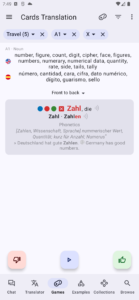
The Games section provides practice modes for German vocabulary, grammar and sentence learning in Netzverb German Dictionary App for Learners.
Games can use the same filters as word lists. This means users can practice only certain word types, levels, collections, success states or themes.
The toolbar lets users choose the game type.
Available games include:
- Random Game
- Shift Tenses
- Select Tense
- Select Article
- Cards Translation
- Cards Basics
- Cards Sentences
Random Game selects one of the available game types automatically.
10.1 Filtering games
Before practicing, users can apply filters. This is useful for focused learning.
Examples of possible filter goals:
- Practice only verbs.
- Practice only nouns.
- Practice words from one collection.
- Practice a selected level.
- Practice only faulty or untried words.
Active game filters are shown as filter chips.
10.2 Opening word details during games
The word shown in a game can be opened in the detail view. This lets users inspect grammar, meanings or examples before continuing.
10.3 Success tracking
Game results update the success status of words.
Correct answers add positive progress. Incorrect answers mark the word as faulty or add negative progress. These values are shown in word lists and can be used later as filters.
This makes it possible to focus practice on difficult words.
10.4 Games
Shift Tenses
Shift Tenses is a verb form ordering game (only Android).
The user sees a verb and a tense. Several conjugated forms must be assigned to the correct person or pronoun.
The user moves the forms into the correct positions.
Feedback:
- Correct placement is shown in green.
- Incorrect placement is shown in red.
The user can continue to the next word with the central next button.
Select Tense
Select Tense is a multiple-choice verb form game (only Android)
The app shows:
- A verb
- A tense
- A person or pronoun
- Several possible verb forms
The user selects the correct form.
Feedback:
- Correct choices are shown in green.
- Incorrect choices are shown in red.
After answering, the user can continue to the next item.
Select Article
Select Article is a noun gender game (only Android).
The user sees a noun and chooses the correct article:
- der
- die
- das
- no article
Feedback is shown immediately.
Correct choices are highlighted in green. Incorrect choices are highlighted in red.
Flashcard games
The app includes three flashcard game types:
- Cards Translation
- Cards Basics
- Cards Sentences
They use the same general flow. The front side shows a prompt. The user thinks of the answer and taps the card to reveal the back side.
After revealing the answer, the user rates the result:
- Thumbs down: the answer was not known.
- Neutral or next: continue without marking it strongly correct or incorrect.
- Thumbs up: the answer was known.
A positive rating marks progress. A negative rating marks the item for further practice.
Flashcard modes
The flashcard mode can be configured in Advanced settings.
Available modes include:
- Random: items appear in random order.
- Leitner: difficult items appear more often.
- SM-2: review timing adapts to recall performance.
11. Translator
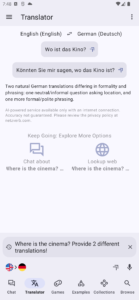
The Translator in Netzverb German Dictionary App for Learners translates words or sentences between German and another language.
The screen contains:
- Source language
- Target language
- Swap button
- Translation result chips
- Explanation text
- Lookup actions
- Bottom input field
The Translator is AI-powered and requires an internet connection. Accuracy is not guaranteed, so users should review results carefully.
11.1 Translation languages
The Translator uses two languages:
- Source language
- Target language
Users can switch the direction with the swap control near the language labels.
The same swap can also be triggered by tapping the Translator tab again in the bottom navigation while the Translator is active.
Users can select other supported languages instead of the default translation language.
11.2 Translation input
The bottom input field is used to enter the word or sentence to translate.
Users can:
- Type the text.
- Use speech input.
- Clear the input.
- Restore previous translations from history.
- Use the lookup menu with the current input.
11.3 Translation results
The Translator can show several translation chips. These chips represent possible translations.
Below the chips, the app can show an explanatory text describing meaning, usage or context.
11.4 Translation chip actions
Each translation chip has a lookup button.
The chip lookup menu can include:
- Translate: insert the translated word back into the Translator and perform a reverse translation.
- Browse: search the translated item in Browse.
- Chat about: ask the AI assistant about the translation.
- Lookup web: search the translation in external web resources.
This makes it easy to explore a translation further.
12. Chat
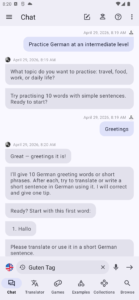
The Chat section of Netzverb German Dictionary App for Learners provides an AI assistant for German learning and app usage.
The assistant can help with:
- Grammar explanations
- Vocabulary questions
- Translation questions
- Example sentences
- Context and meaning
- Learning practice
- Conversations by level
- Questions about how to use the app
The Chat feature is AI-powered and requires an internet connection. Answers should be reviewed carefully, especially for complex language questions.
Chat answers can contain links to relevant German words. These links open the linked word directly in the Browse section. This allows users to move from an AI explanation to the dictionary view, word details, translations, examples, collections and practice options without searching for the word manually.
12.1 Chat input
The chat input area is at the bottom.
Users can:
- Type a message.
- Dictate a message with the microphone.
- Clear the current input.
- Send the message with the submit button.
- Restore previous chats from history.
Longer messages with line breaks can be entered and sent.
12.2 Chat languages
The language selector in Chat controls language-related behavior.
Users can set:
- The assistant language, meaning the language in which the assistant should answer.
- The chat input language, meaning the keyboard or input language used for writing messages.
This is useful when users want to write German characters or use a specific keyboard layout.
12.3 Chat history
The chat history button gives access to previous conversations.
Users can:
- Restore an earlier chat.
- Delete individual chat histories.
- Delete all chat histories.
Starting a new chat does not delete the old one. Previous chats remain available in history.
12.4 New chat
The toolbar contains a new chat icon. It starts a fresh conversation.
The previous conversation is kept in the history.
12.5 Tutor menu
The tutor icon opens guided learning options.
Available levels include:
- Beginner
- Intermediate
- Advanced
After choosing a level, the assistant can ask what the user wants to practice and guide the conversation accordingly.
The tutor menu also includes Chat about the app, which lets users ask how the app works.
12.6 Personal learning context
In the Pro version, signed-in users can allow the Chat assistant to include personal learning context. This option is available through the user icon with a plus symbol.
When enabled, the assistant can take the user’s collections and game results into account. This includes information such as which words are part of the user’s collections and whether words were answered correctly or incorrectly in games. The assistant can then provide more personalized explanations, practice suggestions and learning support.
This feature requires a Pro subscription and an active user account.
13. Settings
The Settings screen contains the main configuration areas of the Netzverb German Dictionary App for Learners.
Available settings categories include:
- Display & layout
- Languages
- Collections
- Web resources
- Bottom navigation
- Speech
- Advanced
Some settings are also available directly from the app screens, so users do not always need to open Settings for frequently used changes.
13.1 Display & layout
Display & layout controls visual behavior.
Available settings include:
Dark theme
Always use the dark theme. If disabled, the app can follow the phone’s night mode setting.
Dynamic Colors
Use colors based on the current device wallpaper, where supported.
Colored words
Use different colors for word types and noun gender.
Split screen
Use split screen in landscape mode or on wide screens.
Browse second tap
Choose what happens when the Browse tab is tapped again.
Word Layout is also related to display behavior and controls which parts of word entries are visible.
13.2 Languages
Language settings define the main languages used across the app.
Available settings include:
App language
Sets the language of the app interface. By default, the phone language is used.
1st translation language
Defines the primary translation language. By default, this is based on the phone language or falls back to English when unavailable.
2nd translation language
Defines the optional second translation language. This allows users to see two translations in word lists, examples and detail views.
Search language
Defines whether German or one of the selected translation languages is mainly used for search.
Assistant language
Defines the language used by the Chat assistant.
Chat input language
Defines the language used for writing chat messages, especially useful for keyboard behavior and German characters.
13.3 Collections settings
Collections settings define personal word collections.
Users can configure:
- Collection name
- Collection color
- Whether a collection is shown as quick access
- Whether a collection is only available through a submenu
The app supports multiple collections. Quick access is useful for frequently used collections. Less frequently used collections can remain in the submenu to keep word menus shorter.
13.4 Web resources settings
Web resources settings allow users to configure custom external lookup resources.
Each custom web resource can have:
- A name
- A URL pattern
The URL pattern contains a placeholder for the selected word or text. When the resource is selected from the Lookup web menu, the app inserts the current term into the URL and opens it in the internal browser.
The app supports several predefined resources and additional custom resources.
13.5 Bottom navigation settings
Bottom navigation settings control which optional main sections appear in the tab bar.
Users can activate or deactivate supported buttons, such as:
- Games
- Translator
- Chat
- Examples
This allows users to simplify the interface when they do not use every area regularly.
13.6 Speech settings
Speech settings control voice input and voice output.
Speech recognition
Activates the speech recognition button in search bars.
Speech output
Uses high-quality online voice output instead of the Android device voice output.
Voice-related behavior may depend on the device, operating system and internet connection.
13.7 Advanced settings
Advanced settings contain learning behavior and diagnostic options.
Flashcard mode
Controls how flashcards are scheduled.
Available modes:
- Random
- Leitner
- SM-2
Use Google Analytics
Controls app usage tracking with Google Analytics, according to the app’s privacy policy.
Verbose mode
Debug option that shows technical information for troubleshooting.
Offline mode
Debug option that loads only words from the local database. Not all words may be available locally.
Without database
Debug option that loads only words from the internet. Without an internet connection, no words are shown in this mode.
These debug options are intended for troubleshooting and should usually remain disabled for normal use.
14. Profile and synchronization
The Profile screen lets users sign in and manage synchronization.
On Android, users can sign in with:
On iOS, users can sign in with:
- Apple
After signing in, users can manage profile information, such as name or password, where supported.
The Profile screen also shows registered devices. Synchronization can be used to keep collection assignments and related learning data available across devices and web applications.
Users can:
- See connected devices.
- Enable or disable synchronization.
- Trigger or inspect synchronization status.
- Keep collection assignments consistent across devices.
15. General app menu
The general menu is opened from the menu icon in the top left corner.
It contains global app entries such as:
- Settings
- Upgrade
- Privacy
- Consent
- My Profile
- Help
- FAQ
- Release Notes
- Review
- Contact
- Imprint
- Copyright
- About
16. Import, export and refresh
Several list-based screens have a context menu with list-related actions.
Available actions can include:
- Refresh: reload the current list or detail information.
- Export: export a word list.
- Import: import a list into a selectable collection.
- Internet access: change online or offline behavior.
- Help: open contextual help.
Import is useful for adding prepared word lists to collections. Export is useful for saving or sharing list content where supported.
17. Recommended workflows
17.1 Look up and learn a word
- Open Browse.
- Enter the word or form in the search field.
- Check the result list.
- Open the word detail view.
- Review grammar, meanings, translations and examples.
- Add the word to a collection.
- Practice it later in Games.
17.2 Create a personal learning list
- Search words in Browse.
- Open the word menu.
- Add words to a collection.
- Use Collections to review the list.
- Use Games with the collection filter to practice only those words.
17.3 Practice difficult words
- Open Games.
- Open filters.
- Filter by Success.
- Choose faulty or untried words.
- Select a game type.
- Practice until the success status improves.
17.4 Work with example sentences
- Open Examples.
- Search for a word, phrase or translated text.
- Review matching sentences.
- Use lookup actions to translate, browse or chat about a sentence.
- Listen to audio where available.
17.5 Explore a translation
- Open Translator.
- Enter a word or sentence.
- Review translation chips and explanation text.
- Use a chip lookup menu to reverse translate, browse, chat or search the web.
17.6 Use AI support
- Open Chat.
- Select the assistant language if needed.
- Ask a question or choose a predefined prompt from a lookup menu.
- Use the tutor menu for level-based practice.
- Start a new chat when switching to a new topic.
18. Troubleshooting and usage tips
A word or sentence is not shown
Check whether filters are active. Active filters appear as chips below the toolbar. Remove filters with the X on the chip or change the filter selection.
Also check the selected search language. The search may be using German, the first translation language or the second translation language.
The wrong translation language is shown
Open the language selector or go to Language settings. Check the first and second translation languages.
Search results are too limited
Remove active filters and check whether Recents mode is active. Recents mode only shows recently opened words.
The app shows several entries for the same written word
The word may be a homonym. Open the detail view and use the tabs at the top to switch between the different meanings or grammatical roles.
Voice input is not visible
Open Speech settings and enable speech recognition. Device permissions may also be required.
AI features do not work
Translator and Chat require an internet connection. Check internet access and make sure offline or debug modes are not preventing online access.
The interface is too crowded
Use Bottom navigation settings to hide unused tabs. Use Word Layout to hide information that is not needed in word lists. Use collection quick access only for collections that are used often.
The list and details should be visible at the same time
Use landscape mode or a tablet layout with Split screen enabled. The list remains on the left and the selected detail view appears on the right.